Posted on
Apr 9, 2026
5 min
read
/
By
Clay Thomas
Knowing how to remove expired eSIM plan profiles keeps your device organized. It also prepares your phone for new connections. Maybe you just finished a trip to Japan and your data plan expired. Or you switched carriers and need to clean up old profiles.
Whatever the reason, deleting inactive eSIMs is simpler than you think. This guide walks you through the entire process. You'll learn everything from checking what needs to go to setting up a fresh eSIM afterward.
Reasons to Delete eSIM Profiles
There are plenty of practical reasons to remove old eSIM profiles.
Reduces clutter in your settings. Expired plans just sit there taking up space. They make it harder to find your active connections when you need them. If you travel often and use different providers, that list gets messy fast.
Prevents connection confusion. Keeping too many inactive profiles causes issues. Your phone might try connecting to an old, expired profile instead of your current one. This wastes time and creates unnecessary headaches.
Frees up storage slots. Some devices have limits on stored eSIM profiles. iPhones typically allow multiple profiles but only two active simultaneously. Android devices vary by manufacturer, but they also have storage caps. Deleting what you don't use frees up slots for new connections.
Maintains good digital hygiene. Removing expired eSIMs keeps your phone running smoothly. Your settings stay organized. You avoid accidental roaming charges from profiles you forgot were installed.
Preparation Before Removal
Before you start deleting anything, take a minute to prepare properly.
Check which eSIM profile you want to remove. Go into your phone settings. Look at the list of mobile plans or cellular connections. You'll see names like "Journey Japan eSIM," "Primary," or "Travel." Make sure you're targeting the right one, especially with multiple profiles installed.
Confirm the profile is truly expired. If you're still within your validity period, think twice before removing it. Most eSIM profiles use one-time activation codes. These can't be reused once deleted. You'd need to purchase a new plan to get connected again.
Back up important information if necessary. eSIM profiles don't store personal data like photos or contacts. Still, it's smart to note down these details before deletion:
Plan details and activation dates
Customer support information
Provider contact info
Ensure you have an alternative connection. If you're removing your only active mobile plan, make sure you have WiFi access. Or have another SIM card ready to use. You don't want to accidentally disconnect yourself without a backup option.
Remove Expired eSIM Plan on iPhone
Removing an eSIM from iPhone takes about 30 seconds.
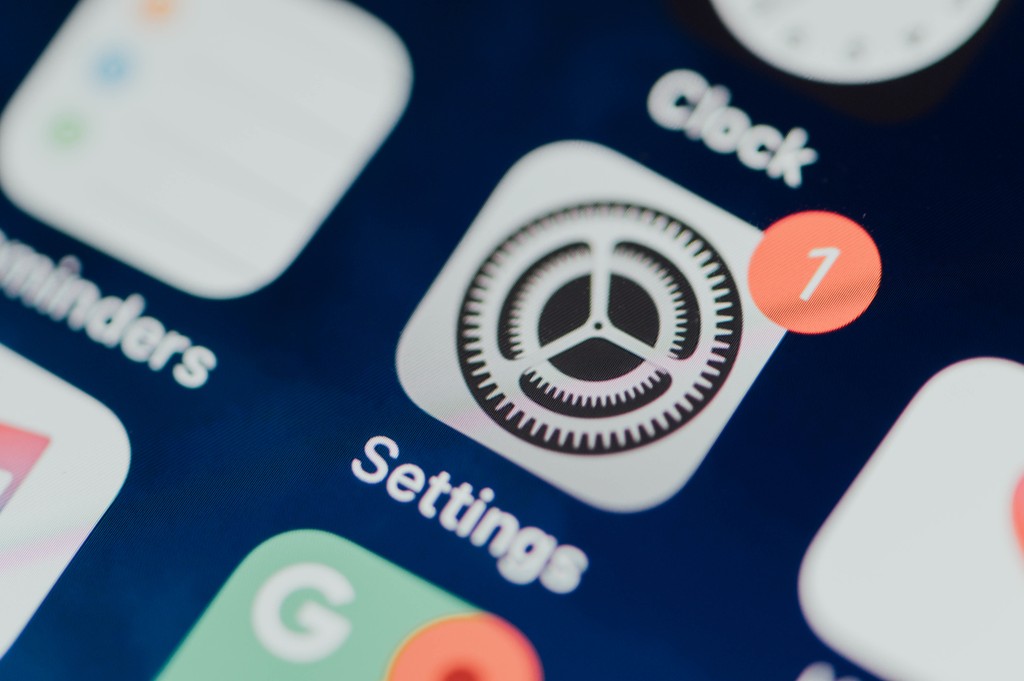
Step 1: Open Settings. Open the Settings app on your iPhone. Scroll down and tap "Cellular" or "Mobile Data." You'll see a list of all your cellular plans.
Step 2: Select the expired plan. Look for the expired plan you want to remove. Tap on that specific plan to open its settings page.
Step 3: Remove the plan. Scroll to the bottom of that page. Find "Remove Cellular Plan" or "Delete eSIM." Tap it.
Step 4: Confirm deletion. Your iPhone will ask for confirmation. The system warns you that deleting requires a new activation code to reinstall. Tap "Remove" or "Delete" to confirm.
The profile disappears immediately. If you had multiple profiles, your phone automatically switches to the remaining active plan.
Step 5: Verify removal. Double-check by going to Settings and Cellular. Verify the expired profile no longer appears.
Remove Expired eSIM Plan on Android
The process on Android is similar but varies slightly by manufacturer.
Step 1: Open Settings. Open Settings on your Android device. Different brands organize this differently. Look for "Connections," "Network & Internet," or "SIM cards."
Common locations:
Samsung: "Connections"
Google Pixel: "Network & Internet"
Other Android: "SIM cards"
Step 2: Find SIM manager. Look for "SIM card manager," "Mobile networks," or "SIMs." Tap it to see all your installed mobile plans.
Step 3: Select the expired eSIM. Find the expired eSIM you want to remove. It might show the carrier name, your custom label, or "Downloaded SIM."
Step 4: Delete the profile. Tap on the expired profile to open its settings. Look for "Delete," "Remove," or a trash icon. Samsung devices often show a toggle switch first, then a delete option below.
Step 5: Confirm removal. Tap "Delete" or "Remove eSIM." Android will ask you to confirm. The warning reminds you that you'll need a new QR code to reinstall.
The profile removes immediately and disappears from your SIM manager list.
Step 6: Verify deletion. Check your SIM card manager to verify the old profile is gone. If you had another eSIM or physical SIM active, your phone continues using that one.
Troubleshooting Common Issues
Sometimes things don't go smoothly. Here's how to handle the most common problems.
Delete option grayed out. Try turning off the eSIM profile first. Go to the profile settings and toggle it to "Off." Then try removing it again. Some phones won't let you delete an active connection.
Phone freezes during removal. Restart your device completely. Power it off, wait 10 seconds, then turn it back on. The temporary glitch usually clears after a restart.
Accidentally deleted the wrong profile. Check your email for the original activation code. Physical SIM cards are unaffected. For eSIM profiles, you'll need the activation details to reinstall.
Error: "Cannot remove eSIM." Check if the profile is set as your default line. Change your default settings to use a different SIM. Then try deleting again.
Profile still appears after deletion. Try these quick fixes:
Toggle airplane mode on and off
Reset Network Settings in your phone's Settings
Restart your phone
One of these usually forces the system to refresh.
Effects of eSIM Deletion
Understanding what happens after you delete an eSIM helps avoid surprises.
Loss of mobile data connectivity. You lose mobile data from that specific provider. If it was your only active plan, you'll need WiFi or another SIM. Make sure you're connected to WiFi before removing your last data source.
Phone number becomes inactive. You also lose the phone number associated with that eSIM, if it had one. Travel eSIMs like Journey Japan eSIM typically don't include phone numbers. But if your eSIM had calling capabilities, that number becomes inactive immediately.
Unused data vanishes completely. Any unused data from that plan disappears. There's no way to recover it. Once the profile is gone, everything associated with it vanishes.
Automatic switching with dual SIM. If you're using dual SIM and remove one profile, your phone switches automatically. Check your settings afterward to ensure calls, texts, and data use the correct line.
No subscription cancellation. Removing the eSIM doesn't cancel subscriptions or payments. If you have recurring charges, cancel through the provider's website separately.
Setting Up New eSIM After Deletion

Ready to get connected again? Setting up a fresh eSIM is straightforward.
Wait until shortly before departure. If you're installing a travel eSIM, wait until shortly before your trip. Many plans start their validity period from activation. You don't want to waste days before you even leave home.
Purchase your new eSIM plan. Buy your plan from your chosen provider. You'll receive an email with a QR code or activation code within minutes.
For iPhone users:
Go to Settings, then Cellular
Tap "Add Cellular Plan"
Scan the QR code or enter details manually
Follow the prompts to label your new plan
For Android users:
Open Settings, then Connections or Network & Internet
Tap "SIM card manager" or "Mobile networks"
Look for "Add mobile plan"
Scan your QR code or enter the code manually
Follow the setup wizard
Turn on mobile data. Enable mobile data for your new eSIM profile. If you're traveling, turn off airplane mode once you arrive.
Journey Japan eSIM activates automatically upon arrival in Japan. Just install the profile before your flight. Enable it when you land for instant connection to NTT Docomo's network.
Conclusion
Learning how to remove expired eSIM plan profiles keeps your phone organized. It also prepares your device for new adventures. Whether you're clearing out old travel connections or making room for a fresh data plan, the process takes less than a minute on both iPhone and Android devices.
Remember to verify which profile you're deleting. Back up important details. Have an alternative connection ready before removal.
If you're planning your next trip to Japan, Journey Japan eSIM offers incredibly fast setup. You'll get reliable coverage on Japan's local networks like KDDI and NTT Docomo. Enjoy hassle-free connectivity across all 47 prefectures. Just purchase your plan, receive your activation code via email, and install it when you're ready to travel.
When you return home and need to remove expired eSIM plan profiles, you'll know exactly what to do.
Frequently Asked Questions (FAQs)
1. Can I reinstall a deleted eSIM profile?
Most eSIM activation codes are one-time use only. They cannot be reused after deletion. You'll need to purchase a new plan from your provider. Always double-check which profile you're deleting before confirming. Contact your provider's support if you accidentally deleted an active plan.
2. Will deleting an eSIM affect my physical SIM card?
No, removing an eSIM has no effect on your physical SIM card. They operate independently. Deleting an eSIM only removes that specific digital profile. Your physical SIM continues working normally with the same phone number and data plan.
3. How many eSIM profiles can I store on my phone?
iPhones typically support storing 8 or more eSIM profiles. Only two can be active simultaneously. Android devices vary by manufacturer. Samsung and Google Pixel phones usually support multiple stored profiles with similar active limits. Check your phone's specifications for exact numbers.
4. Does removing an eSIM delete my personal data?
No, eSIM profiles don't store personal data. They only contain network credentials and settings. Deleting an eSIM removes your connection to that mobile network. Your photos, contacts, messages, apps, and files remain untouched.
5. What happens if I delete my only active mobile plan?
You'll lose cellular connectivity immediately. You can only access the internet through WiFi. Your phone will show "No Service" or "SOS Only" in the status bar. Make sure you have WiFi access or another SIM card ready before removing your last active connection.

5.0
USD
$84
New

4.9
USD
$69


5 min
read
/
Posted on
April 14, 2026
eSIM Future Trends: Travel Connectivity Evolution Explained

5 min
read
/
Posted on
April 9, 2026
Best eSIM for Kyoto Trip: Stay Connected in Japan

5 min
read
/
Posted on
March 30, 2026
eSIM for Tourists: Why Travelers Ditch Physical SIMs

5 min
read
/
Posted on
March 20, 2026
Best eSIM Providers Japan: What You Should Consider